Quick facts
- Mod
- Jenny Mod
- Java version
- Forge 1.12.2
- Bedrock target
- 1.17.0–1.21.71+
- Creator
- Schnurri_tv / SlipperyTum (community)
- Java file
- .jar (Forge)
- Bedrock file
- .mcaddon / .mcpack
- Also searched as
- Jennys mod, Jenny's mod, Jeeny mod, Jenny mod apk
- Not affiliated with
- App Store / Play wrapper apps, fake CurseForge
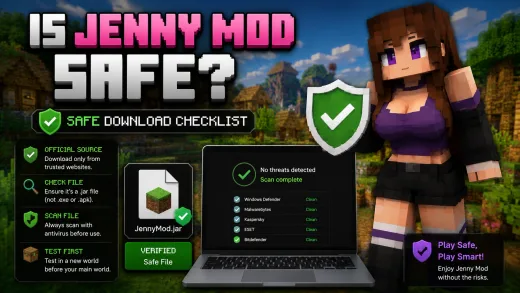
People ask “is jenny mod safe?” like it is a yes-or-no sticker. It is not. Safety is about where you got the file, what type it is, what your scanner says, and whether you tested before touching a main world.
Good news: a few simple habits cut risk a lot. Bad news: many people skip them, grab a random mirror, and only ask about safety after something breaks. This guide is here to prevent that.
If you are new, start from the homepage, keep the FAQ open for quick terms, and pair this safety guide with version compatibility and fixes so you can separate file trust issues from normal compatibility crashes.
Quick Answer
Jenny Mod can be fine to use if you are careful about downloads and setup. Do not trust any mod file blindly. Check the source, confirm version claims, scan if you want, and try it in a test world before your main save.
If a page screams “100% virus free forever” with zero details, treat that as a warning — not a guarantee.
What Safe Means for Mod Files
Safety questions get muddled because people mix four different things:
- Is the file what it claims to be?
- Does a scanner flag it?
- Will it run on my setup without wrecking the world?
- Is the download page honest about where it came from?
A file can pass one test and fail another. A clean file can still crash your game if versions do not match. A working file from a shady mirror can cause trouble later. A scan-clean file bundled with a sketchy launcher is still a problem.
So the honest answer to “is jenny mod safe” is: safe enough only after you check the source and follow the steps below.
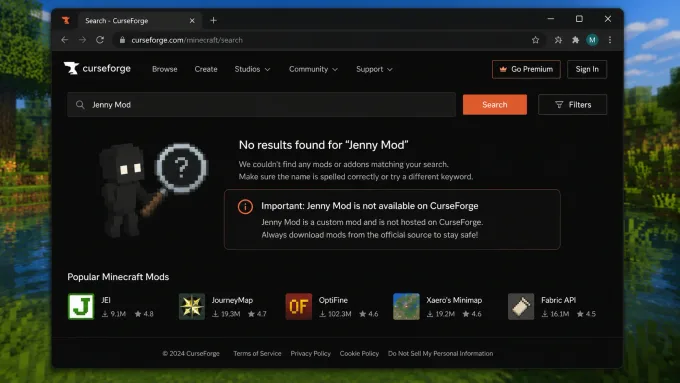
The CurseForge Myth Explained
One myth keeps coming back: “If it is not on CurseForge, it is malware.” Too simple.
CurseForge helps with discoverability, moderation, and consistent version info. That is useful. But not being there is not proof of malware. Plenty of mods are shared elsewhere for history or policy reasons.
Better way to think about it:
- Listed on a major platform? That can add confidence.
- Not listed? You need to verify more yourself.
- Verification means repeatable checks you can do every time.
The opposite myth hurts too: “Popular site, so I skip checks.” Big sites still have reposts, outdated links, and name confusion.
Use platform presence as one clue — not your only clue.
Fake Apps, Fake Download Pages, and Repacks
Most avoidable safety issues do not start with advanced malware. They start with naming confusion.
Attackers and low-quality aggregators exploit common search patterns by publishing pages with familiar keywords in the title and unrelated file payloads behind the button. Sometimes the payload is not overtly malicious; it can be ad-heavy, outdated, or wrapped in unnecessary installers. But even “mildly bad” files waste time and increase risk.
Common fake-source patterns include:
- Overly generic page templates duplicated across dozens of unrelated apps.
- Download buttons that redirect through multiple ad hops.
- File names that do not match the described version.
- Claims that every version from 1.12.2 to 1.21 works identically.
- Missing or copied changelog text with no technical specificity.
Repacks are another issue. A repack may include the mod but add extra components you never requested. Those extras can include intrusive launchers, browser prompt scripts, telemetry-heavy wrappers, or unknown helper binaries. Even when these extras are not classified as malware, they expand your attack surface.
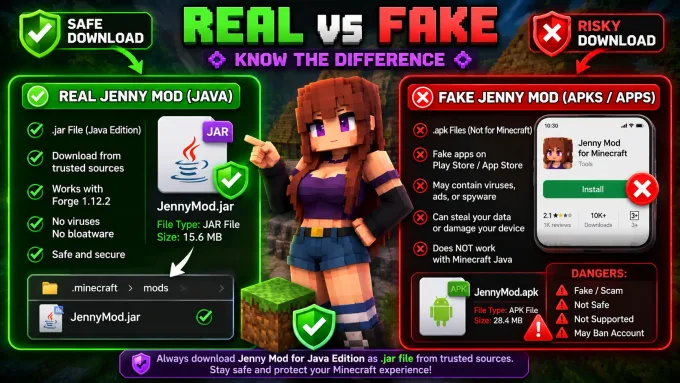
A trustworthy source usually does the opposite: clear scope, direct file naming, transparent version boundaries, and no pressure tactics.
Virus Scan Steps That Actually Help
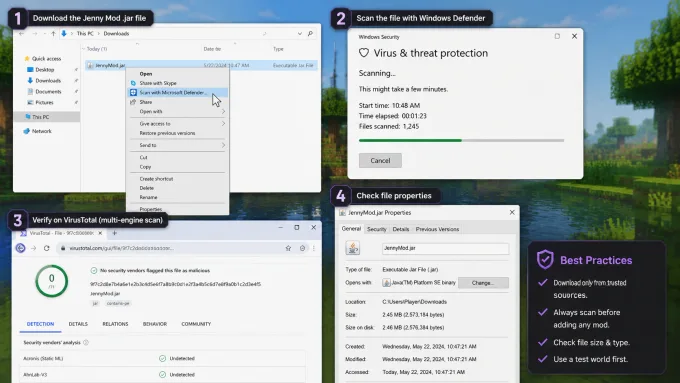
Many people run one quick scan and stop. Better than nothing — not enough to feel confident. A stronger approach uses a few layers.
Layer 1: Your usual antivirus
Scan the file locally with your resident antivirus before opening it with any launcher. This catches many common signatures and known threats.
Layer 2: Multi-engine perspective
When possible, run a multi-engine scan using a reputable service. Multi-engine results are not perfect truth, but they expose disagreements and unusual detections that single tools may miss.
Layer 3: Heuristic judgment
Interpret scan outcomes in context:
- Zero detections is positive, not absolute proof.
- One low-confidence generic flag can be false positive.
- Multiple unrelated high-confidence detections across engines deserve caution.
- Any detection linked to trojan/dropper families is a stop signal.
Layer 4: Runtime caution
Even clean scans should be followed by careful first-run behavior:
- Use non-critical worlds first.
- Watch for unexpected background processes.
- Avoid granting unnecessary permissions.
- Keep system restore options ready.
This layered approach is practical. You are not trusting blindly, and you are not panicking over every false alert.
File Checks and Trust Clues
A trustworthy file matches what the source said you would get. Mirror sites often rehost files without saying where they came from. Look for these good signs:
Good signs:
- Consistent file naming tied to explicit game version and loader.
- Matching documentation that explains dependencies.
- Update dates on the page that match what the file claims.
- Community discussion that references the same hash or file size.
- Clear change notes instead of recycled promotional text.
Bad signs:
- “Ultra safe guaranteed” banners with no technical data.
- Version labels without loader mention.
- Huge compatibility claims with no test notes.
- Download archives containing unrelated executables.
- Pages that hide ownership and contact details.
Whenever possible, compare values from two independent references before trusting a file. One source can be wrong; two consistent sources reduce error probability.
Common Red Flags Users Overlook
Most users can spot obvious scams. The subtle red flags are trickier.
Red Flag 1: Language inconsistency
If a page says “Java mod” but the file or steps look like a phone app or Bedrock pack, something is wrong. Mixed terms usually mean copied text, not a maintained guide.
Red Flag 2: Impossible compatibility promises
Claims like “works perfectly on Java, Bedrock, MCPE, Forge, Fabric, and every version up to 1.21” without caveats are usually marketing language, not engineering truth.
Red Flag 3: Pressure messaging
Warnings such as “install now or your account expires” are unrelated to normal mod delivery. Urgency is a manipulation tactic.
Red Flag 4: Bundled installers
If the file introduces a separate installer process unrelated to mod management, pause and inspect. Extra installation layers are often where risk is introduced.
Red Flag 5: Missing ownership trail
A source with no update history, no maintainer identity, and no traceable documentation should not be your primary trust anchor.
Small red flags compound. One odd detail may be harmless. Five odd details together are a no-go signal.
Safe Usage Practices After Download
Safety does not end when the file passes scans. Post-download behavior matters.
Keep modding separate from banking, work email, and other sensitive stuff when you can. Good habit for any heavy mod setup.
Maintain backups before major changes. Many users classify world corruption as a “security issue” when it is actually compatibility damage. Backups make that distinction less painful.
Track what you install. A simple text file with source URL, date, version, and loader can save hours later. If something breaks, you can roll back with confidence instead of guessing.
Avoid stack explosions. Installing many new mods at once reduces your ability to identify which file caused a crash or warning. Incremental changes are safer and easier to audit.
Review outbound behavior. If your firewall or security suite reports unexpected network behavior from unrelated components, investigate before continuing.
What to Do If You Suspect a Bad File
Fast response matters more than perfect diagnosis. If a file seems suspicious:
- Stop launching it immediately.
- Disconnect from optional online sessions while reviewing.
- Run full antivirus and anti-malware scans.
- Remove unknown bundled components.
- Reset launcher profiles linked to the suspect file.
- Change passwords if you entered credentials in suspicious tools.
- Restore worlds from known-good backups.
Do not continue “just to test one more thing.” Continued execution increases uncertainty and can overwrite useful evidence.
If it turns out to be a version mismatch instead of malware, you still did the right thing — you kept your worlds and system safe while figuring it out.
Distinguishing Safety Problems from Compatibility Problems
A large portion of “unsafe” reports are actually compatibility failures:
- Immediate crash at startup after version mismatch.
- Missing dependency errors due to loader mismatch.
- Broken textures from incompatible resource packs.
- Save issues from changing core mods mid-world.
These are serious usability problems, but not necessarily signs of malicious code. The distinction matters because the fix path differs. Compatibility issues need version alignment and loader checks. Safety issues need source checks and security scanning.
This is why internal linking helps:
- Use version compatibility to verify realistic support.
- Use how to use guide for normal gameplay expectations.
- Use not working fixes for crash patterns and loader conflicts.
When these layers are separated, decisions become clearer and less stressful.
Practical Safety Checklist Before First Launch
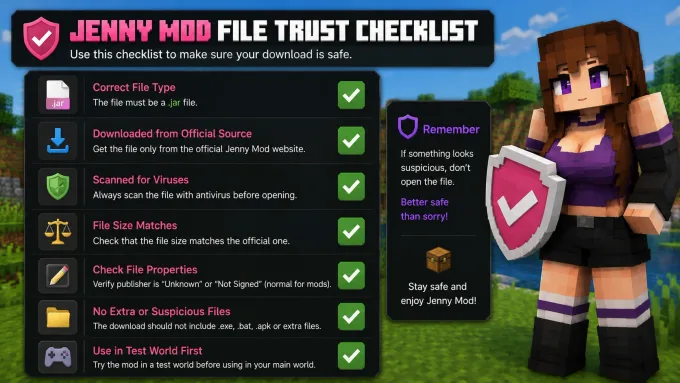
Use this concise checklist each time you evaluate a new file:
- Confirm source context and ownership trail.
- Confirm version and loader statements are explicit.
- Confirm file naming is coherent with documentation.
- Scan locally with resident antivirus.
- Run multi-engine scan when possible.
- Launch in a test environment, not your primary world.
- Observe behavior and logs before long sessions.
This checklist takes minutes and prevents most avoidable mistakes.
Why “No Risk” Language Is a Warning Sign
Nobody can honestly promise zero risk on every PC forever. Scanners update, games update, and everyone’s setup is different.
So pages promising absolute safety are often less trustworthy than pages that acknowledge limits and provide verification guidance. Transparency is a better trust signal than certainty language.
A mature safety culture accepts uncertainty and compensates with process. That process is what this guide is about.
Balanced Conclusion: Risk vs Utility
Jenny Mod can be part of a normal modded setup when users apply disciplined safety checks. It should not be treated as “always safe,” and it should not be dismissed by simplistic myths either.
The most useful stance is balanced: verify source claims, scan intelligently, separate compatibility issues from security concerns, and maintain rollback options. If you do that, risk becomes manageable and predictable instead of chaotic.
For structured navigation, keep these links handy:
- Homepage for primary site entry.
- FAQ for quick clarifications.
- Version Compatibility Guide for realistic support expectations.
- Not Working Fixes for troubleshooting after safe installs.
Safety is not one decision. It is a habit.
Frequently Asked Questions
Is Jenny Mod safe on all devices?
No software is uniformly safe across all devices and configurations. Safety depends on source trust, scan outcomes, compatibility, and your local security posture.
Why do people mention CurseForge so often in safety debates?
Because platform reputation is easy shorthand. It helps, but it is only one trust signal. You still need file-level checks and behavior awareness.
If antivirus says clean, can I skip all other checks?
You should not. Antivirus results are essential but incomplete. Provenance, compatibility, and first-run caution still matter.
What is the fastest way to reduce risk right now?
Use trustworthy sources, reject vague mirror pages, run layered scans, and test in non-critical environments before committing to long gameplay sessions.
Where can I continue after this guide?
Read How to Use Jenny Mod in Minecraft for gameplay flow and Jenny Mod Not Working Fixes for targeted troubleshooting.